

 Audience: Event Coordinator
Guest Hub is your tracking view for every guest invited to an event. It shows, in one place, who has responded, who has booked travel, and the full travel details (PNRs, trip dates, ticket numbers, and cost) for every confirmed attendee, so you can follow up with the right people before the event and answer stakeholder questions on the spot
Video: Guest Hub
Guest Hub and Event Dashboard
Event Dashboard is where you land after opening an event: a summary of attendance status, profile completion, and booking progress for every guest, alongside the event's details, timeline, and travel policy. Guest Hub is where you go from there for the full per-guest detail: filtering, exporting, and managing individual guests. Use Event Dashboard to see how the event is tracking overall, and Guest Hub when you need to act on specific guests.
Opening Guest Hub
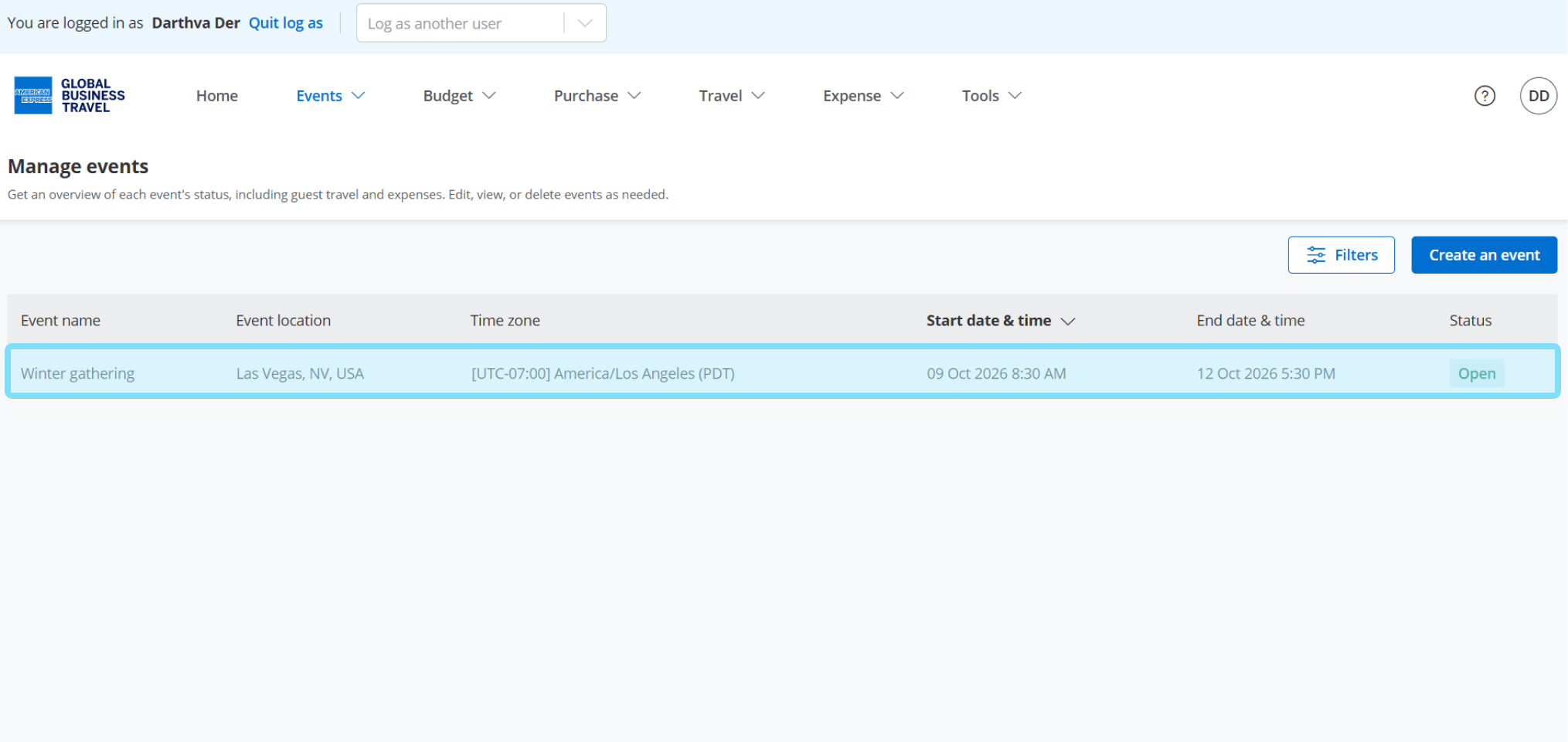
Select the event you want to track, then select Guest Hub.
Status indicators clearly identify guests who have not yet responded, those who have accepted but not completed their booking, and those fully confirmed.
When a guest exists but has no booking activity, contextual messaging ensures you always have an accurate picture of event readiness.
The three tabs
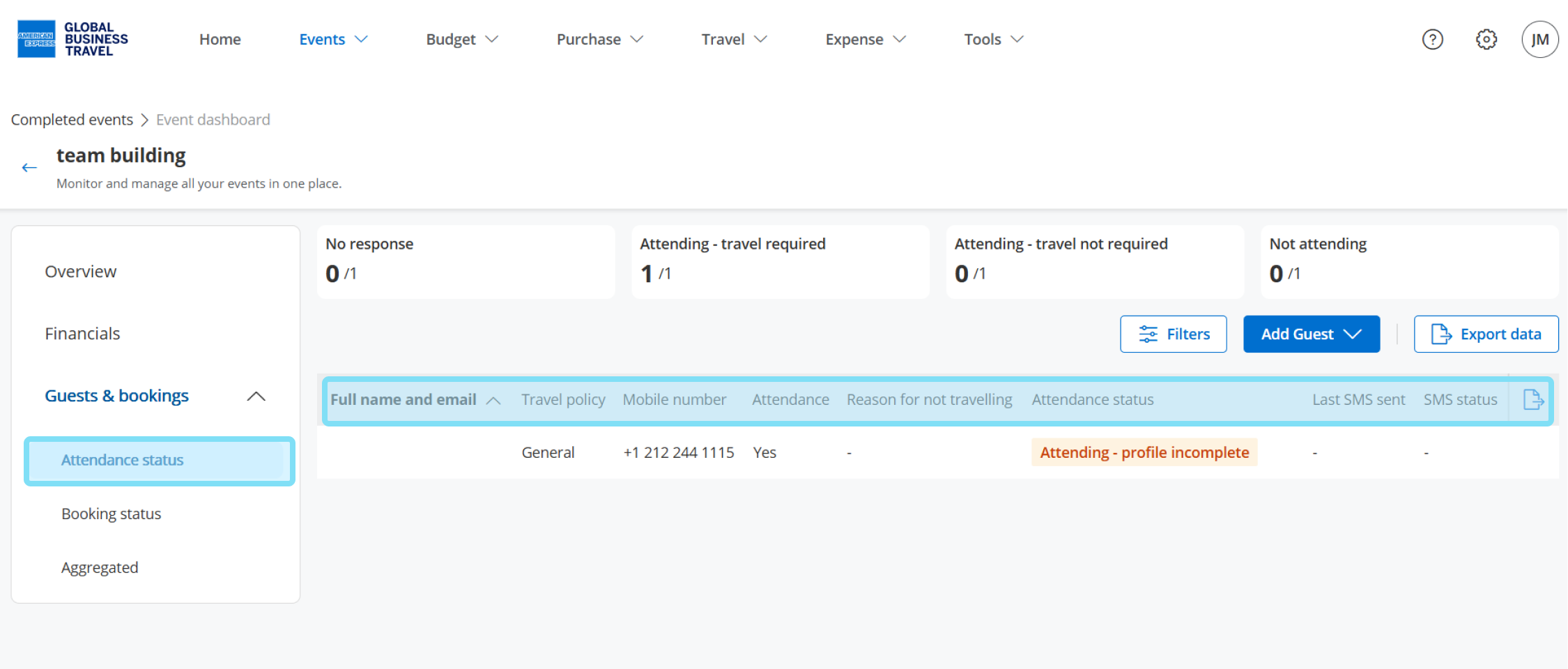
Attendance status
Lists all invited guests with a responded-vs-invited counter (for example, 214/300). Use the filters to narrow the list by:
- Name
- Travel policy
- Attendance status
- SMS status
Booking status
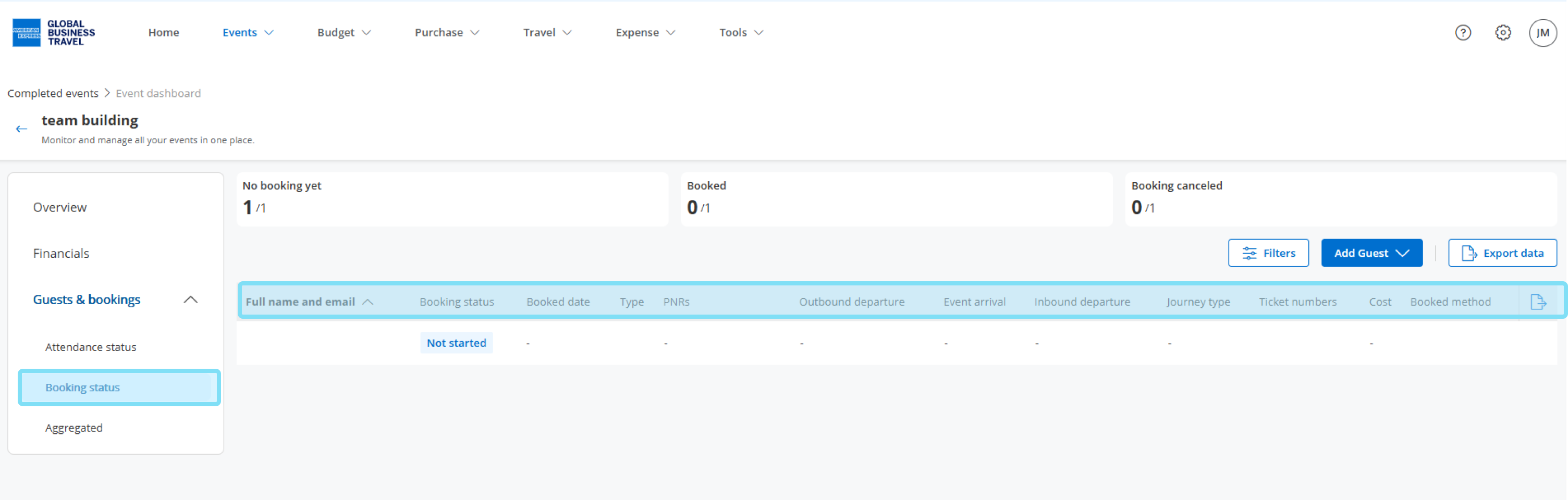
Shows only confirmed attendees who need travel. Each row displays:
- Booking status
- Booked date
- Type
- PNR
- Outbound departure
- Event arrival
- Inbound departure
- Journey type
- Ticket number
- Cost
- Booked method
Tip: New bookings, changes, and cancellations appear in the traveler row as soon as they happen.
Aggregated
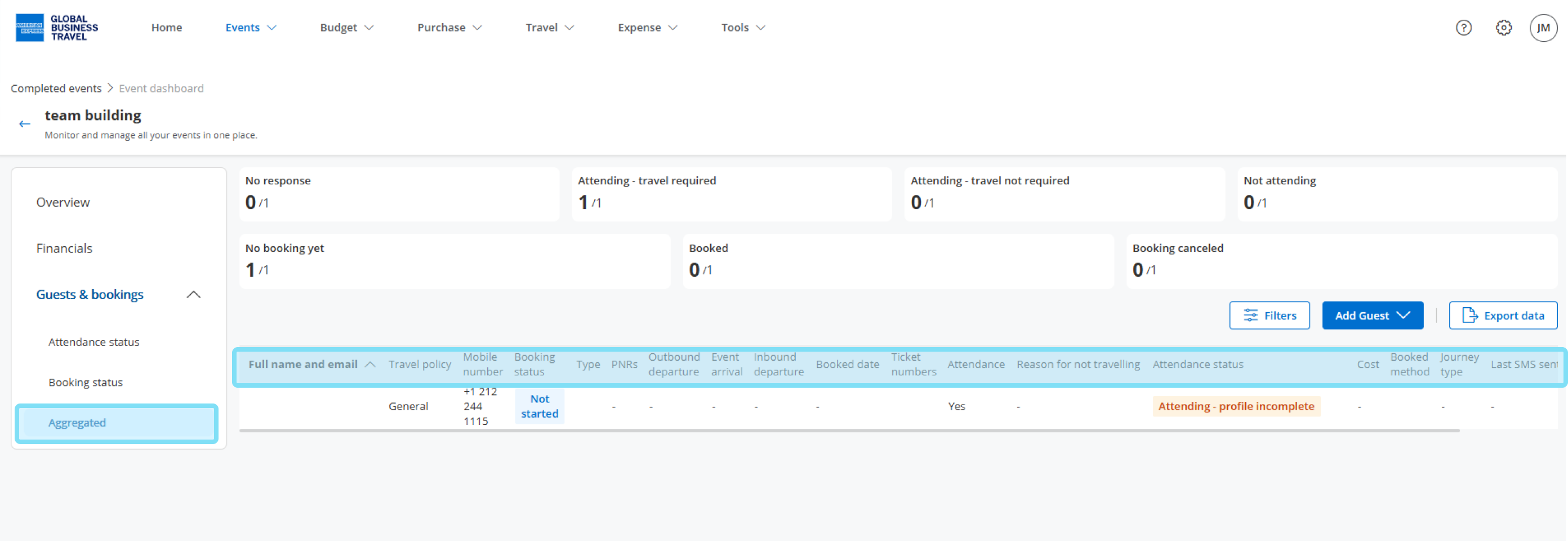
Combines attendance and booking data for all invited guests in one consolidated view, with dashes where a guest hasn't responded or doesn't need travel.
Filtering and exporting
Filter to a segment
Apply filters (booking status, journey type, date range, cost range, and more) to isolate a specific group, such as international travelers who haven't booked yet.
Export your data
From the Booking status or Aggregated tab, export the current view for offline reporting, budget reconciliation, and stakeholder communication.
Tip: Guests never see Guest Hub themselves. Use it to spot who hasn't booked and send a timely, individual reminder instead of a generic one.